Secure Shutdown
Wakezilla can pair each target client with its proxy using a unique 256-bit key. After pairing, shutdown requests are signed with HMAC-SHA256 and the client rejects requests with an invalid signature, an expired timestamp, or a reused nonce.
This protects the destructive target-side action from unauthenticated callers. The proxy dashboard and API remain separate trust boundaries and should still be restricted to a trusted network, VPN, or authenticated gateway. See Security.
Pair a new client
Section titled “Pair a new client”1. Register the target
Section titled “1. Register the target”In the proxy dashboard, choose Add machine and expand Client settings. Enable Allow shutdown from the dashboard. Keep Client port at 3001 unless you intend to run the client on a different port.
After the machine is saved with shutdown enabled, the window moves to Set up your machine. You can return to it later with Set up client in the machine’s details. Wakezilla generates a different key for every machine and includes it in the displayed configuration command.
2. Install Wakezilla on the target
Section titled “2. Install Wakezilla on the target”Choose Linux / macOS or Windows. The setup window displays 1. Install Wakezilla before 2. Set up the client. Run the installation command if Wakezilla is not already installed on the target.
For Linux and macOS:
curl -fsSL https://wakezilla.dev/install.sh | shFor Windows, open PowerShell as Administrator:
irm https://wakezilla.dev/install.ps1 | iex3. Configure the client server
Section titled “3. Configure the client server”Choose Copy beside 2. Set up the client and run the generated command on the target. It has this shape:
sudo wakezilla setup --mode client --port 3001 --key <generated-key> --yesOn Windows, run the same command from an Administrator terminal without sudo.
4. Wait for verification
Section titled “4. Wait for verification”Keep Set up your machine open. It automatically sends an authenticated request to the client’s secure health endpoint; Check connection also starts a check. When the keys match, the API state becomes verified and the window shows Client configured.
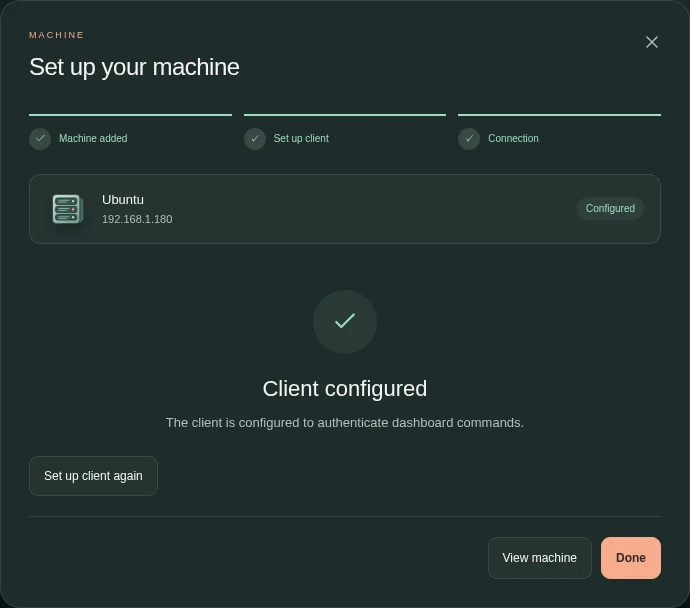
The image shows an existing, verified client. No shutdown key or generated configuration command is exposed. View machine returns to the settings, and Done closes the window. A reachable, configured client provides Shut down in its details, followed by a Shut down machine confirmation.
The regular /health endpoint remains public so Wakezilla can report whether the client is reachable. Verification uses the authenticated /health/secure endpoint instead.
Setup states
Section titled “Setup states”The API exposes the states below. The dashboard uses messages such as Waiting for setup and Client configured to describe them.
| State | Meaning | Next action |
|---|---|---|
disabled |
Remote shutdown is not enabled for this machine. | Enable remote shutdown if needed. |
legacy |
The client accepts older unsigned shutdown requests. | Choose Set up client again, confirm Generate new key, then run the generated command. |
pending |
A key exists, but the client has not proved it is using that key. | Run the generated command and leave the page open. |
verified |
The proxy and client share the same key. | No action is required. |
unreachable |
The proxy could not reach the client. | Start the client and check its IP, port, firewall, and service status. |
key_mismatch |
The client responded with a different key. | Run the currently displayed setup command again. |
The dashboard offers Shut down only for reachable legacy and verified clients. New secure clients must be verified before the control appears.
How requests are authenticated
Section titled “How requests are authenticated”For each secure health or shutdown request, the proxy creates a timestamp and a random nonce. It signs this exact newline-delimited payload with the machine key:
wakezilla-v1<UPPERCASE_METHOD><path><timestamp><nonce>It sends the timestamp, nonce, and resulting signature in these headers:
x-wakezilla-timestamp;x-wakezilla-nonce;x-wakezilla-signature.
The client reconstructs the same HMAC-SHA256 signature and compares it with the request. It accepts timestamps within 60 seconds and remembers recent nonces so a captured request cannot be replayed.
Keep the proxy and target clocks synchronized. A clock difference greater than 60 seconds causes authentication to fail even when the key is correct.
Secure a legacy client
Section titled “Secure a legacy client”Machines created before secure shutdown can appear as legacy. They continue to work with unsigned requests for compatibility, but should be migrated:
- Open the machine’s details and choose Set up client.
- Choose Set up client again, then confirm Generate new key.
- Run the new configuration command on the target.
- Wait for the dashboard to report
verified.
Once the key is configured, that client no longer accepts unsigned secure health or shutdown requests.
Rotate or replace a key
Section titled “Rotate or replace a key”Open Set up client on a verified machine. Choose Set up client again, then confirm Generate new key. Rotation immediately changes the key stored by the proxy and returns the machine to pending, so shutdown requests will not work until the new command is run on the target and verification succeeds. Cancel the confirmation if you only wanted to inspect the setup.
Rotate the key if the setup command, client configuration, proxy machine database, or a backup containing either file may have been exposed.
Troubleshooting
Section titled “Troubleshooting”- The setup stays unreachable: verify the target is powered on, the client service is running, and TCP
3001is allowed from the proxy. - The setup reports key mismatch: run the command currently shown in the dashboard; an older copied command may contain a previous key.
- Authentication fails intermittently: synchronize the proxy and target clocks.
- The shutdown control is missing: finish verification, or confirm that remote shutdown is enabled for the machine.
See Web Dashboard for the complete machine workflow, System Services for client service controls, and HTTP API for endpoint details.